Showing posts with label tech tools. Show all posts

Monday, October 23, 2017

Tech Bytes - October

Can you believe that October is almost over? It's time for this month's Tech Bytes and the wonderful things in the world of technology integration. 

Be In The Know:

Are you ready to teach untethered from the front of the room and make the shift to "guide on the ride?" Many teachers in our district have fallen in love with annotate.net. Annotate has a free feature that allows you to use your mobile device as an interactive whiteboard while presenting to your computer's attached presentation device. It even has built-in formative assessment tools that you can add to your lesson.

You can create notebook presentations with the software or import content you have in your Google Drive. Check this document for more information and instructions if you are interested. 

Note: At this time, GCS does not use the downloaded version of Annotate Client. 

iPad App:

 iOS 11 brings some new features for ease of classroom use. First, you no longer need a separate app to scan QR codes, open the camera app on the device and scan away. Tap the notification to open the site for the QR code.

The new dock will now hold up to 13 apps. App icons will appear in the dock as you open them. This feature makes it easy for our young learners to find the most used apps. 


Cool Tools Corner:

I have long been a huge fan of the Book Creator app for the iPad. It is the. best. paid. app. for education ever! I always felt sorry for classes that didn't have iPads to take advantage of this tool. Why do I love it so much? It is an easy tool to create multi-media books that can be shared with others. Imagine your students' creations containing images, text, sound files, and videos. Yes, all that is possible with Book Creator. So, this past summer when they announced they would be bringing to Book Creator to the web, I got all goose-bumpy with excitement. I am excited to share that the web version is just as wonderful as the app. You can create a library and invite your students to share. Together, you can create 40 books for free. If you want to know more, let your ITF know. In the meantime, here are instructions for creating a book. Enjoy! 

Thursday, March 5, 2015

Interactive Posters

Thanks to Lisa Johnson, TechChef, for the idea to create an augmented business card using Thinglink. Thinglink is a great tool for technology integration because it works across all platforms. I highly recommend you take a look at it. You can also associate your student accounts to your educator version. The beauty is the ability to integrate with Google Docs, so student presentations can go to a whole new level.


Wednesday, January 7, 2015

Nearpod - Making the Front of the Room Obsolete

I have written before about my classroom wishlist. In thinking along those lines, what do you do about the perceived "front of the room" where all students have to be able to see pertinent information, after all that is where my projector and SMARTBoard are located....

Who says that students have to look up at the screen to receive information or lesson activities? With today's initiatives for 1:1 and BYOD, shouldn't there be a better solution than desks in rows or even in stationary pods?

There are several options, and one is an app called Nearpod (also available on the web). Nearpod allows you to share your presentations to the students' devices and include interactive, engaging activities throughout. I have put together a presentation to help my teachers get started with the awesome tool. I hope it will help you explore the option as well.


Wednesday, January 15, 2014

Blog Challenge Day 5 - Cool Tool

I hope you have heard of and are very familiar with the concept of making thinking visible in your classroom. I know that I have used and seen many teachers use the cut out thought bubble to put over the head while doing read alouds with the class. It helps students to understand the thought processes that go on "under the hood" when comprehending what you read. Of course, making thinking visible is across curricular and is useful in every grade level.

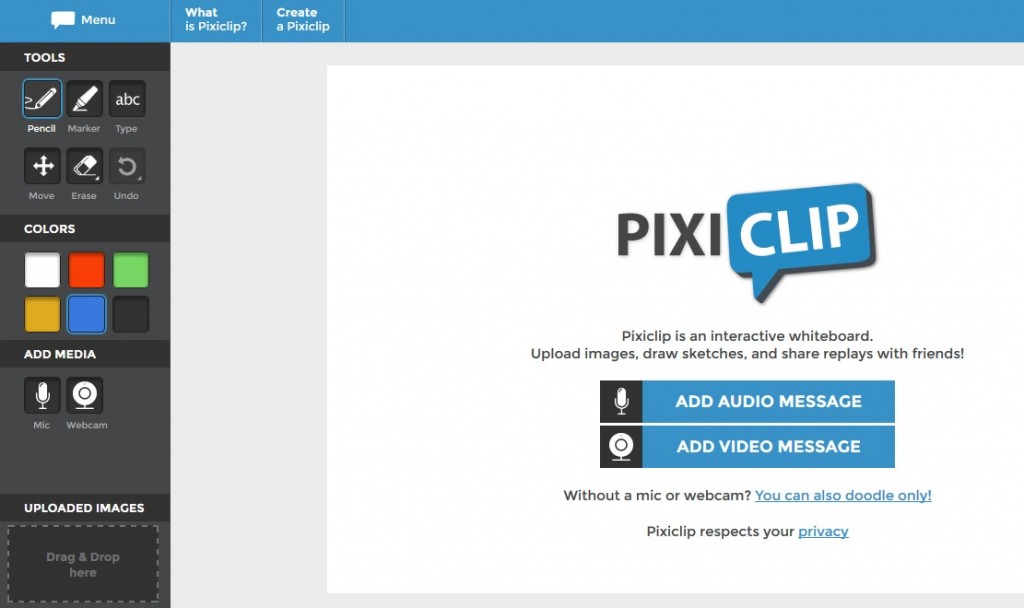
The 20 Day Blog Challenge for today is Share a topic/idea for the class. What's one thing you used that you would use again. The one thing that I would use as part of making thinking visible is an online whiteboard. There are many available and Richard Byrne just posted seven on his blog freetech4teachers.com. I want to choose one and show you the possibilities. To give credit where credit is due, Jason Mammano actually sent me info about this first. I am talking about Pixiclip.

Pixiclip is an online whiteboard that allows you to doodle, and to add voice over or video. You can draw your own information or upload images that you can then annotate over. The completed video can be embedded, shared via Twitter or Facebook, or emailed. The accounts are free and super easy to set up.

This would be a great tool for students to show their thinking while adding voice overs to further explain. Anyone can easily see if students are explaining things to one another or offering creative ideas by the use of this site. The site works well on any computer browser. It also works on the iPad, although the audio and video portions are not available on the iPad. I think that is OK because there are several apps that can be used as an interactive whiteboard. Check it out!

Friday, August 31, 2012

Classroom Strategies that Work...Effort & Recognition

We are a third of the way through our Marzano's classroom strategies that work and today I want to share some ideas for recognizing effort and providing recognition. According to Marzano, "students who believe the amount of effort they put into a task increases their achievement actually do better." The trouble is students do not inherently know the relationship between their effort and their success. So they need opportunities to see that relationship, perhaps by tracking the amount of effort to the achievement level.

Hello technology, ready to help!

Google Sites: Our county will be moving to student accounts within our Gaston Google Apps account beginning next semester. Think about using Google sites to allow them to create portfolios. There are basically three ways to use sites for portfolios: storage of digital work, single space for storage/reflection together, and then as a showcase in which the learner chooses things that really show off their learning. The thought processes behind the last two choices will help students make connections between effort and the results. A student blog, such as Kidblog or Edublog could serve a similar purpose.

Edmodo, a secure social networking site designed for teachers and students (think of it as as an educational Facebook), added a new feature a year or so ago allowing you to award badges. What a great incentive! Students love to earn the badges and again they will make the connection between effort and the recognition provided once they have the badge. Edmodo makes it easy to award the badge to the student by simply visiting the profile of that student and choose "award badge" button. You will have the option of creating your own badges or those from the Edmodo community. As a GCS teacher, you have access to Edmodo within our Edmodo domain. Just ask your Instructional Technology Facilitator for the school code.


I know one of my teachers' favorite is ClassDojo. Teachers use ClassDojo to build good behaviors and learning habits. Kids love it because they get instant feedback, have ways to earn points, and have cool avatars.

Check out these tools and please leave comments if you have any to add!


Monday, April 16, 2012

Using iPads or iPods in the Classroom

There were several sessions at the ASCD annual conference on using iPads and/or iPods with students even as young as PreK. I want to share a few of the apps and ideas for their use in the classroom.


Sock Puppets: This is a free app for iPod and iPad. It publishes the finished video to YouTube which could be put on a teacher channel for the class to view. Great for kids to publish book reviews, science experiments, public service announcements, biographies, autobiographies, debates. Let them use the app to explain math problems, practice fluency, or a new way to publish their own writing.


Storykit App: Another free app for both iPod and iPad that provides stories from the public domain. The cool thing is that it allows you to edit those stories as well as create your own books. So make those stories modern by changing up the characters and language. Let students create their own biographies at the beginning of the year as a cool way to get to know everybody in the class. Start a ABC book and add letters as you learn them because the stories can be edited at any time.


BrainPop Featured Movie App: Free for both iPod and iPad. School subscription is not need to access a featured free movie every day. Questions are asked after each video to check comprehension.


StopMotion Recorder ($ .99): It is an iPod app that will also work on an iPad. A toy video camera that allows you to make stop motion video like those claymation clips you have seen before. Allows you to edit as well as share on YouTube (again think about saving to your teacher channel.)


Songify: This iPod app turns speech into music, automatically. Kids love it and can be used for storytelling, spelling lists, water cycles, life cycles, math facts, and more. Also works on an iPad.


Show Me: The iPad only app allows you to record voice over tutorials and share online. Let your students use the app to create their own Kahn Academy like tutorials to share with each other and online. Maybe create tutorials for your school or district. You can also insert pictures and have students voice over information about the photo. Think of a new way to label the parts of a plant for example complete with the purpose of those parts in the plants growth and survival!


A couple of things to keep in mind when choosing and using apps in the classroom:

  • Mobile learning allows teachers to layer learning which is a requirement in Common Core.
  • You can't rely solely on the apps for higher order thinking skills, it is the teacher's responsibility to use multiple apps if necessary so students can analyze, evaluate, and create.
  • You can't teach the same way with the new technology. Pedagogy has to change by integrating the device into a sequence of activities. 
  • Take advantage of the social aspect of the device. 

What are some of your favorite apps for classrooms? How are you changing your teaching as a result?


Tuesday, March 20, 2012

April Ideas

It is hard to believe that April is almost upon us and Spring Break is just a couple of weeks away. Upon returning from Spring Break, there is the push toward EOGs. Sometimes in that rush, we overlook a great opportunity to bring fun back into the classroom. Did you know that April is National Humor Month? It is also National Poetry Month. What a great excuse reason to combine the two and lighten up just a bit. I have found a few resources that you can use.

ReadWriteThink has several interactive tools to use to write your poetry as well as lesson plans for all grade levels.

Thinkfinity has combined resources on poetry and humor, again for all grade levels.

Museum of Humor provides educational articles, lesson plans, and printables for using humor in your classrooms. I like this site provides some humor related lessons for every subject.

Finally, Education World has a lesson plan on creating Funny Poetry Mobiles.

Pull the computer mic out of storage and incorporate some of these ideas with fluency practice. Allow the students lots of practice and then let them record in Audacity. Bring in background music and sounds that will enhance the reading and turn the recording into a MP3. Viola, you will have lots of material for a listening center.


Wednesday, February 1, 2012

Valentine's Day Ideas

Confession time: I spend lots of time on Pinterest and would spend more if I had it! Have you checked out Pinterest yet? If so, I bet you are hooked as well.

First of all, in case you haven't heard of it yet, Pinterest is a visual bulletin board on the web in which you pin items you find on the internet, hence creating boards. You can view the boards of others, share boards you create with collaborators, and follow other people and their boards. For more information on Pinterest, check out their site or head on over to Noggle Notes and view her post.


What does Pinterest have to do with Valentine's Day? Interesting you should ask. How about a quick, visual board of neat activities and lessons plans? The folks at Primary Junction have assembled this board with craftvities, lesson plans, center ideas, and more. Check out their Valentine pins here. Also, take a look at their other boards for lots of ideas.

Monday, January 30, 2012

I Wonder!

If you have small children in your family, you know that they can ask endless questions about everything. "What's the wrong side of the bed?" "Are Bald Eagles really bald?' "Why?" "Where does chewing gum come from?"


Somehow, they lose the enthusiasm of the whys and I wonders as they progress through school. To encourage wonder and learning through discovery, creativity, and imagination, head on over to Wonderopolis! Here you will find a Wonder for each day, but you can search by categories for past "wonders" as well. Click on the "wonders" tab, and then scroll and look on the lower right hand corner for the list of categories. I bet you will find some things there that you have wondered about too!


Tuesday, January 24, 2012

WatchKnowLearn Site

I love free! As educators, I know you do too. With the economy as it is and school budgets getting smaller, what's a teacher to do other than use as many free resources as we can. Right?

I am sure that you have been using YouTube and loving that GCS has unblocked that site. I hope you are using Discovery Education since that is still being provided for you from the district. But sometimes, those sites don't have the video you need for the particular content you are teaching. I just learned about a free site, yes free, that provides thousands of video content with many especially for elementary students! The site is called WatchKnowLearn. According to their website, they have indexed over 20,000 educational videos in 3,000 categories. You can search their database by category (subject areas) and you can drill down in those categories as well.

A feature that I found useful is being able to search by student age level as well. You simply use the slider to narrow down the age category. The screen shot shows that I narrowed my search to 8-12 year olds.


Finally, another feature for this site that is truly worth checking out is the ability to create your own online classroom. Creating your online classroom allows you to save videos into your categories for your students to access easily. You even get your own sub-domain which becomes the URL address for your online classroom. You can create student accounts and even add attachments to those videos.

I love the possibilities for this site. Check it out and let me know what you think!


Tuesday, January 17, 2012

YouTube

As you know, GCS has unblocked YouTube for teacher log ins. No longer do you have to search for the video from home, download it, and bring it to school to use with your content. The one concern you may have is all the content that shows up when you are in YouTube. Now there is an easy way to clean up that interface.

Hopefully, since you have been trained to use our Google domain, you are also using Google Chrome as your browser. I just love Chrome and I love all the extensions provided for free. Clea.nr Videos for YouTube removes the clutter (comments, related videos, and ads) that you usually see when you view videos in YouTube. The extension is actually available for other browsers as well.

So when I search for "animal adaptations" my search looks like this:


Once I choose a video to view, check out how "clean" it looks.

Wednesday, November 30, 2011

Ever Heard of Kerpoof?

Okay, I admit, I have been super busy this month and didn't take the time to write a blog post. I have been actually co-teaching this month, creating content for teachers, training, training, training, and looking at lots of SMART Board lessons from teachers. I hope to do better as the year progresses, especially after Christmas.

What brings me back today? Kerpoof! Kerpoof is a website, owned and operated by Walt Disney Co., that is all about "having fun, discovering things, and being creative." Did I mention that this is free for in-school use K-8? Educators can set up an account to register students and put them into classes. Students can then work collaboratively on a project such as drawings, animated movies, cards, and storybooks. They also have a section on the site for educators in which they have lesson plans available using the resources on kerpoof. I think I am in love. Check it at at http://www.kerpoof.com or go straight to the Teacher Guide for more detail infomation.


Tuesday, October 18, 2011

Greatest Gift a Teacher Can Receive


A preview of the new report sponsored by Scholastic Inc.and Bill and Linda Gates Foundation called “Primary Sources 2011, America’s Teachers on America’s Schools” was recently released. The full report will be released in January. The report captures the voices and opinions of teachers from across the country on learning and public education. One quote caught my attention. An Elementary School Teacher said, “Having the resources to effectively teach and empower all students would be the greatest gift a teacher can receive.”

I am not sure I think resources would be the greatest gift, but I do think that Gaston County Schools has access to many resources to teach students. One that I feel goes under utilized is the use of Discovery Education (formerly United Streaming). There is so much more than videos available for teachers to use to empower their students, including the capability to create classes and add students to those classes. Once the student has been added, they have the access to the great video content, images, clipart, sound files, and more that teachers have, all included in the service paid for by Gaston County Schools. The students can then use that material with Web 2.0 services such as VoiceThread, Museum Box, or a host of other free sites. 

Other resource provided to classrooms in Gaston County Schools are the interactive whiteboards (SMART Boards and Promethean) that can be an effective tool when leveraged for the interactive abilities these boards provide. We have to move beyond the teacher experiencing the tool to the students experiencing the tool.

If you have any interest in learning more about Discovery Education or help with creating interactive lessons, please let me know. I will share these resources with you and help you use them to empower students.

In the meantime, I am curious, what do you think is the greatest gift a teacher can receive?

Monday, October 3, 2011

Market Place on Learning.Com

Learning.com (EasyTech) has launched a new feature called Market Place. Log in and take a few minutes to check it out. Basically they have partnered with 25 education providers (such as Khan Academy, NASA's BEST Students, LEGO) to offer standards aligned content which is already aligned to Common Core. Most of it is free although some is fee based. Check it out and let me know what you think.


Tuesday, September 20, 2011

SMART Table

Students have been back for a month now, and things are really hopping in the classrooms at my schools. One great thing that I have seen is the SMART Table being returned to use. Especially now that the software has been upgraded to allow teachers to do so much more when creating lessons such as including SMART Notebook lessons in a SMART Table activity pack and the ability to add audio easily to images.

If you have never seen a SMART Table in use, it is an interactive table that allows up to 8 children to touch and manipulate the objects within the activity pack at the same time. It allows students to work collaboratively to solve problems.

For those of you who have a SMART Table, I recommend you join the SMART Table Users Group at http://exchange-forum.smarttech.com/forums/447.aspx?lang=en-US. The groups offers webinars on activity pack creation and has lots of tips for using the Table.

Also, don't forget the SMART Exchange. They now have over 900 activity packs ready for you to download to the bracelet that are ready to use right away with your students. Enjoy.


Tuesday, August 2, 2011

Summer Planning

Much like teachers, we take the opportunity over the summer to create and plan for the upcoming school year. One great thing about our summer is the chance for our group to work together. Imagine how interesting it gets sometimes when strong personalities are in a room together for eight to ten hours a day brainstorming! But overall, it works kinda like a PLC. We all bring to the table different strengths and this is our chance to tap into that. I am always proud of the work our group turns out. The downside to spending all of this time together, is the withdrawal of that energy when we return to our respective schools.

That is where some great technology comes into play that you can use to bring the world into your classroom. We collaborate and communicate via Skype, Google Docs, and Google Chat. Would you like to learn how to do incorporate those tools into your lessons, just let me know!